Showing posts with label JavaScript. Show all posts

Sunday, November 26, 2017

Node-RED: Displaying MQTT Data in a Dashboard

Last time on Patriot Geek, our intrepid blogger built a MQTT client in Node-RED. Can we now present the incoming data in a useful and attractive manner? Stay tuned!

To visualize the data being sent by the BME280, we will use the "node-red-dashboard" module, which adds various nodes that generate interactive dashboards. Here's the dashboard we'll be building:

This post is divided into the following sections:

  1. Install the dashboard extension
  2. Understand dashboard nomenclature
  3. Design Overview
  4. The MQTT Subscriber Flow
  5. Create Dashboard Tabs and Groups
  6. The Dashboard Flow
  7. Test the Dashboard
  8. Conclusions and Source Code


Installation
The Node-RED IDE can be extended in various ways, from adding a single new node to adding a family of new nodes as well as adding significantly to the user interface. That's what the Node-RED Dashboard module does: it adds 16 new nodes, a new sidecar tab, and makes other changes to the IDE.

To install, click the Menu Button and choose "Manage palette". In the property sheet that opens, click the "Install" tab. Do a search for "Dashboard", and scroll until you see the "node-red-dashboard" package, and click the "install" button, then click the red "Done" button. Note: there is no need to install the "node-red-dashboard-es" package.


Dashboard Nomenclature
The use of the word "Dashboard" in Node-RED is kind of confusing, because it is used in several ways:

  • The module we just installed
  • The sidebar tab
  • The section of the palette, and the nodes inside it
  • The UIs that are built with those nodes
In addition, there are two specific terms used to described the parts of the dashboards we build: "tab" and "group".

A tab is a top-level part of the dashboard, and every dashboard must have one. When a dashboard has more than one, a menu will be shown on the left side of the title bar. Each tab has one or more "groups", which are... groups of UI controls.

Here's a tab with three groups inside it:

Here's the menu showing the two available tabs:


Design Overview
We will implement the MQTT data dashboard using two workspace tabs: one called "MQTT Subscriber" which will be a flow similar to that in the previous blog post; the other called "MQTT Dashboard" which will be for the dashboard nodes.

This design approach follows the Model-View-Controller (MVC) design pattern. The dashboard user interface is a view, and the MQTT client is essentially a controller - it processes incoming events and passes data to the view.

How do we send messages from the controller tab over to the view tab? There are a pair of nodes for doing this: the Link Out node and the Link In node. These are found under the "output" and "input" sections of the palette, respectively.


The MQTT Subscriber Flow
Create two new tabs by pressing the New Tab button. Double click on the first, and set the name to be "MQTT Subscriber". Double click the second and name it "MQTT Dashboard". Click back on the "MQTT Subscriber" tab.

Again, the MQTT Subscriber flow is a modification of the one in the previous post - all we'll be doing is adding a Link Out node and removing the two Debug nodes. Here's what the final result will look like:

After deleting the two Debug nodes, add a new Link Out node, which is found in the "Input" section of the palette. Wire it as shown. Double click it and set the name to be "To Dashboard" and click "Done". For quick reference, here are the properties of all four nodes in this flow:

Node Type Property Value
MQTT In
Server: 192.168.1.11:1883
Topic: home/living-room
QoS: 0
CSV
Columns: temperature,humidity,barometric-pressure
Name: Parse CSV into JSON
Function
Name: Add Time Info
Function:
1
2
3
4
var now = new Date();
msg.payload["timestamp"] = now.getTime();
msg.payload["fomratted-time"] = now.toUTCString();
return msg;
Link Out
Name: To Dashboard

Create the Dashboard's Tabs and Groups
Before drawing the view flow, set up the tabs and groups for the dashboard. We will have only one tab called "Living Room Data". Inside that tab will be three groups, called "Temperature", "Humidity", and "Barometric Pressure". Here's how this will look in the Layout subtab when we're done:

Click the dashboard sidebar tab, then choose "Layout" sub tab, and use the "+ tab" button to create the tab. Set the name to be "Living Room Data". This determines the text shown in the title bar of the dashboard.

Then, hover-over the tab and click the "+ group" button three times. Hover-over each and click the "edit" button and set the names to be "Temperature", "Humidity", and "Barometric Pressure". Make sure they're all under the "Living Room Data" tab.

Click the "Site" subtab, and set the web page's title to "MQTT Data". This will be shown in the browser title bar.

While we're here, click the Theme subtab, and set the style to be "Dark". Why? Because Dark UIs Matter:


The Dashboard Flow
Click the "MQTT Dashboard" tab so we can build the dashboard flow. On it, drop one Link In node, one Debug node, three Change nodes, two Chart nodes, one Gauge node, and three Text nodes. The Chart, Gauge, and Text nodes and found in the "dashboard" section of the palette, and the Link In node is found under the "Input" section. Wire them up as follows:

We want the Link In node to receive data from the Link Out node on the other tab. Double click the Link In node, and the name we set to the Link Out node ("To Dashboard") is listed there as a checkbox. Click that checkbox. Also, set the node's name to be "From Subscriber":

Click the Link In node. When it has been successfully connected to the Link Out in the other tab, it is displayed like this, but only when selected:

Double click the Debug node, and set the out to be "complete msg object"

Now, the Chart and Gauge nodes expect their input to be in a particular format: the input must be numeric and the incoming msg.payload must be set equal that numeric value. Trouble is, the data coming from the MQTT subscriber tab (via the Link In node) is a JSON object like this:

{
    "temperature": 71.55,
    "humidity": 41.46,
    "barometric-pressure": 29.73
}

That's the purpose of the three Change nodes, to extract the numeric values from msg.payload, and replace msg.payload with those values.

Double click the first Change node, and set the properties as follows:

Update the second Change node so that it uses msg.payload.humidity. Give it the name "Extract Humidity", and set msg.payload to be msg.payload.humidity.

Name the third Change node to be "Extract Pressure", and set msg.payload to be msg.payload["barometric-pressure"]. Note the different syntax here - "barometric-pressure" is a perfectly fine JSON field name, but it is an invalid JavaScript field name!

Notice the dichotomy between visual programming languages and most traditional languages: altering msg.payload in the first Change node only has consequences for the "downstream" nodes!

The Gauge node and the Chart nodes are now getting the right data!

Now we configure the charts and the gauge. Double click the Chart node that's attached to the "Extract Temperature" Change node, and set the properties as follows:

The Chart attached to the "Extract Pressure" Change node will be set in a similar fashion, except that it will be set to appear in the "Barometric Pressure [Living Room Data]" group, and the name will be "Pressure Chart".

For the Gauge node, set the properties as shown:

Note that range for the Humidity Gauge is set to be from 0 to 100. This is because humidity runs from 0% to 100%. It is also possible to preconfigure the y-axis range on the Chart nodes but the chart will draw values outside that range as a flat line.

Our last task is to configure the Text nodes. Set their properties as follows:

Node Property Value
Text node for Temperature
Group: Temperature [Living Room Data]
Label: Temperature:
Value format: {{msg.payload}} °F
Layout: "row-left"
Name: Temperature Text
Text node for Humidity
Group: Humidity [Living Room Data]
Label: Humidity:
Value format: {{msg.payload}} %
Layout: "row-left"
Name: Humidity Text
Text node for Pressure
Group: Barometric Pressure [Living Room Data]
Label: Barometric Pressure:
Value format: {{msg.payload}} InHg
Layout: "row-left"
Name: Pressure Text

Here's what the flow will now look like:


Test the Dashboard
To see the result of all this, be sure that the MQTT broker is running, and open a new browser window and go to:

http://127.0.0.1:1880/ui
Data will start appearing in the gauge and charts. If there's not a lot of variability in the data, try (get this) breathing on the BME280! Here's what the dashboard should look like:
 

It works on an iPhone 5c, too:


Conclusions and Source Code
This post demonstrated how to make a dashboard that displays MQTT data coming from the BME280 and ESP8266. Something else demonstrated was how to use two separate tabs for the application, one for the controller, the other for the user interface. This use of the Model-View-Controller (MVC) design pattern adds some clarity to our flows.

The source code for the modified MQTT Subscriber flow is as follows:

 1
 2
 3
 4
 5
 6
 7
 8
 9
10
11
12
13
14
15
16
17
18
19
20
21
22
23
24
25
26
27
28
29
30
31
32
33
34
35
36
37
38
39
40
41
42
43
44
45
46
47
48
49
50
51
52
53
54
55
56
57
58
59
60
61
62
63
64
65
66
67
68
69
70
71
72
73
74
75
76
77
78
79
80
81
82
83
84
[
    {
        "id": "fdb325cd.8b5748",
        "type": "mqtt in",
        "z": "553bcc1e.c97b54",
        "name": "",
        "topic": "home/living-room",
        "qos": "0",
        "broker": "a481358c.031c18",
        "x": 128,
        "y": 218,
        "wires": [
            [
                "3c175b0f.97a134"
            ]
        ]
    },
    {
        "id": "3c175b0f.97a134",
        "type": "csv",
        "z": "553bcc1e.c97b54",
        "name": "Parse CSV into JSON",
        "sep": ",",
        "hdrin": "",
        "hdrout": "",
        "multi": "one",
        "ret": "\\n",
        "temp": "temperature,humidity,barometric-pressure",
        "x": 340,
        "y": 218,
        "wires": [
            [
                "eae5505.8945fb"
            ]
        ]
    },
    {
        "id": "eae5505.8945fb",
        "type": "function",
        "z": "553bcc1e.c97b54",
        "name": "Add Time Info",
        "func": "var now = new Date();\nmsg.payload[\"timestamp\"] = now.getTime();\nmsg.payload[\"fomratted-time\"] = now.toUTCString();\nreturn msg;",
        "outputs": 1,
        "noerr": 0,
        "x": 554,
        "y": 218,
        "wires": [
            [
                "3a476f0b.d6bea"
            ]
        ]
    },
    {
        "id": "3a476f0b.d6bea",
        "type": "link out",
        "z": "553bcc1e.c97b54",
        "name": "To Dashboard",
        "links": [
            "492fdf69.9cb38",
            "4e7d2e3c.c3427"
        ],
        "x": 684,
        "y": 218,
        "wires": []
    },
    {
        "id": "a481358c.031c18",
        "type": "mqtt-broker",
        "z": "",
        "broker": "192.168.1.11",
        "port": "1883",
        "clientid": "",
        "usetls": false,
        "compatmode": true,
        "keepalive": "60",
        "cleansession": true,
        "willTopic": "",
        "willQos": "0",
        "willPayload": "",
        "birthTopic": "",
        "birthQos": "0",
        "birthPayload": ""
    }
]

Notice how there is an extra node in the JSON that is not shown in the workspace - this is where info about the MQTT broker is stored. Nodes like this are called "configuration nodes".

And here's the source code for the Dashboard flow:

  1
  2
  3
  4
  5
  6
  7
  8
  9
 10
 11
 12
 13
 14
 15
 16
 17
 18
 19
 20
 21
 22
 23
 24
 25
 26
 27
 28
 29
 30
 31
 32
 33
 34
 35
 36
 37
 38
 39
 40
 41
 42
 43
 44
 45
 46
 47
 48
 49
 50
 51
 52
 53
 54
 55
 56
 57
 58
 59
 60
 61
 62
 63
 64
 65
 66
 67
 68
 69
 70
 71
 72
 73
 74
 75
 76
 77
 78
 79
 80
 81
 82
 83
 84
 85
 86
 87
 88
 89
 90
 91
 92
 93
 94
 95
 96
 97
 98
 99
100
101
102
103
104
105
106
107
108
109
110
111
112
113
114
115
116
117
118
119
120
121
122
123
124
125
126
127
128
129
130
131
132
133
134
135
136
137
138
139
140
141
142
143
144
145
146
147
148
149
150
151
152
153
154
155
156
157
158
159
160
161
162
163
164
165
166
167
168
169
170
171
172
173
174
175
176
177
178
179
180
181
182
183
184
185
186
187
188
189
190
191
192
193
194
195
196
197
198
199
200
201
202
203
204
205
206
207
208
209
210
211
212
213
214
215
216
217
218
219
220
221
222
223
224
225
226
227
228
229
230
231
232
233
234
235
236
237
238
239
240
241
242
243
244
245
246
247
248
249
250
251
252
253
254
255
256
257
258
259
260
261
262
263
264
265
266
267
268
269
270
271
272
273
274
275
276
277
278
279
280
281
282
283
284
285
286
287
288
289
290
291
292
293
294
295
296
297
298
299
300
301
302
303
304
305
306
307
308
309
310
311
312
313
[
    {
        "id": "4e7d2e3c.c3427",
        "type": "link in",
        "z": "6fc2e4b5.acb35c",
        "name": "",
        "links": [
            "3a476f0b.d6bea"
        ],
        "x": 55,
        "y": 140,
        "wires": [
            [
                "43a49c20.b2b534",
                "2d87fae4.e4c7b6",
                "ec5f8a6c.7cef28",
                "432ea3c2.6ca94c"
            ]
        ]
    },
    {
        "id": "43a49c20.b2b534",
        "type": "debug",
        "z": "6fc2e4b5.acb35c",
        "name": "",
        "active": true,
        "console": "false",
        "complete": "true",
        "x": 210,
        "y": 40,
        "wires": []
    },
    {
        "id": "2d87fae4.e4c7b6",
        "type": "change",
        "z": "6fc2e4b5.acb35c",
        "name": "Extract Temperature",
        "rules": [
            {
                "t": "set",
                "p": "payload",
                "pt": "msg",
                "to": "payload.temperature",
                "tot": "msg"
            }
        ],
        "action": "",
        "property": "",
        "from": "",
        "to": "",
        "reg": false,
        "x": 260,
        "y": 100,
        "wires": [
            [
                "5294196b.20d158",
                "d925dd10.68321"
            ]
        ]
    },
    {
        "id": "ec5f8a6c.7cef28",
        "type": "change",
        "z": "6fc2e4b5.acb35c",
        "name": "Extract Humidity",
        "rules": [
            {
                "t": "set",
                "p": "payload",
                "pt": "msg",
                "to": "payload.humidity",
                "tot": "msg"
            }
        ],
        "action": "",
        "property": "",
        "from": "",
        "to": "",
        "reg": false,
        "x": 250,
        "y": 200,
        "wires": [
            [
                "f65a9085.ae81",
                "78782f2d.880f1"
            ]
        ]
    },
    {
        "id": "432ea3c2.6ca94c",
        "type": "change",
        "z": "6fc2e4b5.acb35c",
        "name": "Extract Pressure",
        "rules": [
            {
                "t": "set",
                "p": "payload",
                "pt": "msg",
                "to": "payload[\"barometric-pressure\"]",
                "tot": "msg"
            }
        ],
        "action": "",
        "property": "",
        "from": "",
        "to": "",
        "reg": false,
        "x": 240,
        "y": 300,
        "wires": [
            [
                "ee70b8b0.828fc8",
                "c65aff2.f086b"
            ]
        ]
    },
    {
        "id": "5294196b.20d158",
        "type": "ui_chart",
        "z": "6fc2e4b5.acb35c",
        "name": "Temperature Chart",
        "group": "637855dc.2229bc",
        "order": 0,
        "width": 0,
        "height": 0,
        "label": "",
        "chartType": "line",
        "legend": "false",
        "xformat": "HH:mm:ss",
        "interpolate": "linear",
        "nodata": "",
        "dot": false,
        "ymin": "",
        "ymax": "",
        "removeOlder": "5",
        "removeOlderPoints": "",
        "removeOlderUnit": "60",
        "cutout": 0,
        "useOneColor": false,
        "colors": [
            "#1f77b4",
            "#aec7e8",
            "#ff7f0e",
            "#2ca02c",
            "#98df8a",
            "#d62728",
            "#ff9896",
            "#9467bd",
            "#c5b0d5"
        ],
        "useOldStyle": false,
        "x": 530,
        "y": 80,
        "wires": [
            [],
            []
        ]
    },
    {
        "id": "ee70b8b0.828fc8",
        "type": "ui_chart",
        "z": "6fc2e4b5.acb35c",
        "name": "Pressure Chart",
        "group": "9728196c.705ff8",
        "order": 0,
        "width": 0,
        "height": 0,
        "label": "",
        "chartType": "line",
        "legend": "false",
        "xformat": "HH:mm:ss",
        "interpolate": "linear",
        "nodata": "",
        "dot": false,
        "ymin": "",
        "ymax": "",
        "removeOlder": "5",
        "removeOlderPoints": "",
        "removeOlderUnit": "60",
        "cutout": 0,
        "useOneColor": false,
        "colors": [
            "#1f77b4",
            "#aec7e8",
            "#ff7f0e",
            "#2ca02c",
            "#98df8a",
            "#d62728",
            "#ff9896",
            "#9467bd",
            "#c5b0d5"
        ],
        "useOldStyle": false,
        "x": 520,
        "y": 280,
        "wires": [
            [],
            []
        ]
    },
    {
        "id": "f65a9085.ae81",
        "type": "ui_gauge",
        "z": "6fc2e4b5.acb35c",
        "name": "Humidity Gauge",
        "group": "f468b186.a264b",
        "order": 0,
        "width": 0,
        "height": 0,
        "gtype": "gage",
        "title": "Gauge",
        "label": "%",
        "format": "{{value}}",
        "min": 0,
        "max": "100",
        "colors": [
            "#00b500",
            "#e6e600",
            "#ca3838"
        ],
        "seg1": "",
        "seg2": "",
        "x": 520,
        "y": 180,
        "wires": []
    },
    {
        "id": "d925dd10.68321",
        "type": "ui_text",
        "z": "6fc2e4b5.acb35c",
        "group": "637855dc.2229bc",
        "order": 0,
        "width": 0,
        "height": 0,
        "name": "Temperature Text",
        "label": "Temperature:",
        "format": "{{msg.payload}} °F",
        "layout": "row-left",
        "x": 530,
        "y": 120,
        "wires": []
    },
    {
        "id": "78782f2d.880f1",
        "type": "ui_text",
        "z": "6fc2e4b5.acb35c",
        "group": "f468b186.a264b",
        "order": 0,
        "width": 0,
        "height": 0,
        "name": "Humidity Text",
        "label": "",
        "format": "{{msg.payload}} %",
        "layout": "row-left",
        "x": 520,
        "y": 220,
        "wires": []
    },
    {
        "id": "c65aff2.f086b",
        "type": "ui_text",
        "z": "6fc2e4b5.acb35c",
        "group": "9728196c.705ff8",
        "order": 0,
        "width": 0,
        "height": 0,
        "name": "Pressure Text",
        "label": "Barometric Pressure:",
        "format": "{{msg.payload}} InHg",
        "layout": "row-left",
        "x": 520,
        "y": 320,
        "wires": []
    },
    {
        "id": "637855dc.2229bc",
        "type": "ui_group",
        "z": "",
        "name": "Temperature",
        "tab": "d376d602.4e3538",
        "order": 1,
        "disp": true,
        "width": "6"
    },
    {
        "id": "9728196c.705ff8",
        "type": "ui_group",
        "z": "",
        "name": "Barometric Pressure",
        "tab": "d376d602.4e3538",
        "order": 3,
        "disp": true,
        "width": "6"
    },
    {
        "id": "f468b186.a264b",
        "type": "ui_group",
        "z": "",
        "name": "Humidity",
        "tab": "d376d602.4e3538",
        "order": 2,
        "disp": true,
        "width": "6"
    },
    {
        "id": "d376d602.4e3538",
        "type": "ui_tab",
        "z": "",
        "name": "Living Room Data",
        "icon": "dashboard",
        "order": 2
    }
]

Here, we have four extra configuration nodes: one for the tab and three for the groups.

Saturday, November 25, 2017

Node-RED: Subscribing to a MQTT Topic

For our next Node-RED flow, we will build a MQTT client that will subscribe to BME280 sensor data published by an ESP8266. The hardeare and code for publishing that data is described in an earlier post.

The messages published to the MQTT topic home/living-room are CSV strings containing temperature, humidity, and barometric pressure in British units. Here's an example of such a message:

71.55,41.46,29.73

Our goal for this post is to build a Node-RED flow that subscribes to that topic, and parses that data into JSON like this:

{
    "temperature": 71.55,
    "humidity": 41.46,
    "barometric-pressure": 29.73
}

For this flow, we'll be using the following three types of nodes:

MQTT In
Connects to a MQTT server and subscribes to a specified topic
CSV
Converts CSV data into JSON
Debug
Displays messages in the debug tab

These nodes will be connected as follows:

Double-click the MQTT In node and set the following properties:

Server: 192.168.1.11:1883
Topic: home/living-room
QoS: 0

Next, double-click the CSV node and set the following properties:

Columns: temperature,humidity,barometric-pressure
Separator: Comma
Name: Parse CSV into JSON

Finally, double-click each of the Debug nodes and set the following properties:

Output: complete msg object
to: debug tab

The CSV node uses the column names for the field names, and assigns values to those fields in the order of the values in the incoming CSV. The end result is set to be the message's payload. This is how the messages look in the debug tab:

Pretty-printing the top entry in the debug list shows that the msg object has the following structure:

{
  "topic": "home/living-room",
  "payload":
  {
    "temperature": 73.8,
    "humidity": 37.12,
    "barometric-pressure": 29.6
  },
  "qos": 0,
  "retain": false,
  "_msgid": "1c091ae3.456e45"
}

Great, we've subscribed to a MQTT topic and formatted the incoming CSV data as a JSON object!

Wouldn't it be nice if there were timestamps in these objects? As explained in the post where we built and coded the sensor, our little ESP8266 doesn't have a clock running on battery, nor are we getting time from a network time service. Instead, we will add the timestamp to the data once it arrives in our Node-RED flow.

To accomplish this, we will use a Function node, which will run a block of JS. Wire this Function node into the rest of the flow as follows:

Double-click on the Function node, and set the name to be Add Time Info. In the "Function" textarea, add the following code:

1
2
3
4
var now = new Date();
msg.payload["timestamp"] = now.getTime();
msg.payload["fomratted-time"] = now.toUTCString();
return msg;

All that this code does is to add two additional properties to msg.payload. The JavaScript .getDate() method returns the number of milliseconds since January 1, 1970, and the .toUTCString() formats that data into a human-readable form in the GMT timezone.

Clear the debug tab, deploy the edited flow, and examine the incoming data. Here's an example of what the final result will be, once we pretty-print it:

{
  "topic": "home/living-room",
  "payload": 
  {
    "temperature": 73.76,
    "humidity": 37.35,
    "barometric-pressure": 29.6,
    "timestamp": 1511588927869,
    "formatted-time": "Sat, 25 Nov 2017 05:48:47 GMT"
  },
  "qos": 0,
  "retain": false,
  "_msgid":"3867cbee.a2cfa4"
}

Here's the source code for this last flow:

 1
 2
 3
 4
 5
 6
 7
 8
 9
10
11
12
13
14
15
16
17
18
19
20
21
22
23
24
25
26
27
28
29
30
31
32
33
34
35
36
37
38
39
40
41
42
43
44
45
46
47
48
49
50
51
52
53
54
55
56
57
58
59
60
61
62
63
64
65
66
67
68
69
70
71
72
73
74
75
76
77
78
79
80
81
82
83
84
85
86
87
88
89
90
91
92
93
94
95
96
[
    {
        "id": "ee409dc6.f511b",
        "type": "mqtt in",
        "z": "e260f053.ca405",
        "name": "",
        "topic": "home/living-room",
        "qos": "0",
        "broker": "a481358c.031c18",
        "x": 120,
        "y": 160,
        "wires": [
            [
                "f90ccd18.b0f84",
                "b7c62375.17de5"
            ]
        ]
    },
    {
        "id": "f90ccd18.b0f84",
        "type": "debug",
        "z": "e260f053.ca405",
        "name": "",
        "active": false,
        "console": "false",
        "complete": "true",
        "x": 770,
        "y": 160,
        "wires": []
    },
    {
        "id": "b7c62375.17de5",
        "type": "csv",
        "z": "e260f053.ca405",
        "name": "Parse CSV into JSON",
        "sep": ",",
        "hdrin": "",
        "hdrout": "",
        "multi": "one",
        "ret": "\\n",
        "temp": "temperature,humidity,barometric-pressure",
        "x": 380,
        "y": 220,
        "wires": [
            [
                "5097ac3c.7d4b04"
            ]
        ]
    },
    {
        "id": "adf30d5c.857be",
        "type": "debug",
        "z": "e260f053.ca405",
        "name": "",
        "active": true,
        "console": "false",
        "complete": "true",
        "x": 770,
        "y": 220,
        "wires": []
    },
    {
        "id": "5097ac3c.7d4b04",
        "type": "function",
        "z": "e260f053.ca405",
        "name": "Add Time Info",
        "func": "var now = new Date();\nmsg.payload[\"timestamp\"] = now.getTime();\nmsg.payload[\"fomratted-time\"] = now.toUTCString();\nreturn msg;",
        "outputs": 1,
        "noerr": 0,
        "x": 600,
        "y": 220,
        "wires": [
            [
                "adf30d5c.857be"
            ]
        ]
    },
    {
        "id": "a481358c.031c18",
        "type": "mqtt-broker",
        "z": "",
        "broker": "192.168.1.11",
        "port": "1883",
        "clientid": "",
        "usetls": false,
        "compatmode": true,
        "keepalive": "60",
        "cleansession": true,
        "willTopic": "",
        "willQos": "0",
        "willPayload": "",
        "birthTopic": "",
        "birthQos": "0",
        "birthPayload": ""
    }
]

What are we going to do with all this data flowing in? That's the topic of the next post!

Node-RED: Introduction, Basic Flows, and Messages

This tutorial introduces the Node-RED programming environment. We will be building an app that grabs earthquake data from the US Geological Survey, then sends an email if a sufficiently severe earthquake happened. This is an extension of the first and second flows in the Node-RED documentation. In particular we will:

  1. Install Node-RED
  2. Describe the web-based IDE
  3. Look at the messages a simple flow generates
  4. Get earthquake data from the USGS
  5. Convert that data from CSV to JSON
  6. Check that JSON for major quakes
  7. Determine if we should send email
  8. Send email if a major quake occurred
  9. Look at the source code of the final app
  10. Export flows from the web-based IDE
  11. Import flows into the web-based IDE


Introduction
Node-RED was developed by Nick O’Leary and Dave Conway-Jones, researchers at IBM's Emerging Technologies group. It was designed for rapid prototypes of applications that connect devices and sensors to web services - which makes it perfect for IoT! It was released as open-source in 2014, and has since developed a community of contributors.

Node-RED is a visual data-flow programming language. This means that steps in a particular program are represented as components or "nodes"; the nodes receives data, processes it, then optionally sends the data as a message onward through connections or "wires". Note that this is different from visual control-flow languages, which are "live" flowcharts.

Developers use a web-based IDE to “write” programs in Node-RED, though it is more like "drawing" than "writing". These programs are called "flows". When deployed, these flows are translated into Node.js and then executed.


Installation
Raspberry Pi already has Node-RED installed as part of Raspian. For everybody else, use the following steps to install Node-RED:

  1. Make sure that Node.js and NPM are already installed. If not, the installer for both Node.js and NPM can be found on the Node.js website.
  2. Open a Terminal window and enter the following command:
    sudo npm install -g node-red
  3. Once successfully installed, enter this command to start Node-RED:
    node-red
  4. To get to the web-based IDE, open a browser window and go to this URL:
    http://127.0.0.1:1880


The Web-Based IDE
The IDE looks like this:

The parts of the IDE are:

  1. Workspace - where you draw your flow
  2. Workspace Tabs
  3. New Workspace Tab Button
  4. Node Palette - list of available nodes
  5. Search Installed Nodes
  6. Deploy Button - click this to run the flow(s)
  7. Menu
  8. Info Sidebar Tab - contains node information, tips, etc.
  9. Debug Sidebar Tab - used for output
  10. Zoom Controls - control magnification of the workspace
  11. Tips and Hints

There are also configuration panes, additional sidebar tabs, etc., that are displayed as needed.

Something to notice about the Node Palette is that the nodes in it are grouped into sections like input, output, functions, and so on. Under the storage section there are only three nodes, and they are all for file-based storage. We'll see in a later post how to add other nodes to the palette, including additional means of storage.


Messages in Flows
The final version of our flow is an extension of two of the flows in the Node-RED documentation. Our version will:

  1. Grab earthquake data from the USGS
  2. Format that data as a number of JSON objects
  3. If there is an earthquake with magnitude 6.5 or greater...
  4. ... it will send an email
This functionality won't come all at once - we'll build it iteratively.

To start, drag the one Inject node and one Debug node from the palette onto the workspace. Put the Inject node on the left side and the Debug node on the right side of the workspace. The text inside each node will change when they are dropped on the workspace: the Inject node's label will read "timestamp" and the Debug node's label will be "msg.payload". That's OK.

The Inject node sends a message into a flow. By default, you'll have to click the blue button projecting from the left side of the node. Inject nodes can also periodically send messages - no button click required.

The Debug node displays the incoming message (or part of a message) in the Debug sidebar tab. Output can be disabled by clicking the green button on the right side of the node.

Next, draw a wire connecting them. This is done by clicking and dragging the little grey circle on the right side of the Inject node and finishing on top of the little gray circle on the left side of the Debug node. Those little grey circles are called "ports". Here's what the flow should look like:

Click the "Deploy" button to run this flow. Click the Debug sidebar tab, then click the blue button on the Inject tab a few times. The current epoch time should be displayed in the Debug tab:

So the Inject node sends the epoch time to the Debug node, which displays it in the Debug tab. However, the primary purpose of the Inject node is not to send epoch time into a flow; rather, its purpose is to kick-off a flow.

Notice that the Debug node reads "msg.payload". This is a sign that the entire msg object (the message being sent from Inject to Debug) is NOT being displayed. To change this, double click the Debug node. A property sheet will be displayed. Change the "Output" field so that it reads "complete msg object", like this:

Click the "Done" button, click the "Deploy" button, and try the Inject button again. Now the complete msg is displayed in the Debug tab. If we copy that message and pretty print it, we see that it is nothing but a JSON object:

{
  "_msgid": "4fb55bb0.6a3014",
  "topic": "",
  "payload":1511641857466
}

In this case, msg.payload is an integer. It is possible for the payload to be an array, an object, or any other JavaScript type. It is also possible to add fields to the msg object, and to remove them, too.


Get Earthquake Data
Now let's grab us some earthquake data! This is done using the HTTP Request node found in the the "function" section of the node palette. Drag one of those onto the workspace. Delete the wire running from the Inject node to the Debug node by clicking it and pressing "Delete". Wire up the three nodes as follows:

The USGS provides a number of data feeds, one being the significant earthquakes that occurred this week, which can be found at:

https://earthquake.usgs.gov/earthquakes/feed/v1.0/summary/significant_week.csv

The data is returned in CSV format, with the first line being the field names. A description of this data, along with links to other data feeds, can be found at the USGS website.

Double click the HTTP Node and set the URL to be that URL. Press the "Done" button, then deploy, and try the blue button on the Inject node. The USGS' CSV will be displayed in the Debug sidebar tab - it will be stored in msg.payload. Also notice that there are some additional properties: a statusCode of 200, a headers object, and a responseUrl. These are all examples of how a node can modify the incoming msg object.


Format CSV Data as JSON
For easier processing, we will reformat msg.payload as JSON. This is done with the CSV node under "functions". Drag one of those onto the workspace and update the wiring as shown:

Double click the CSV node and make the following two changes:

  • For input, click the checkbox next to "first row contains column names"
  • Set output so that it returns "a single message [array]"
The first change makes the column names in the CSV into the field names in the JSON objects, one JSON object per CSV row. The second change stores all the JSON objects into an array, as opposed to emitting separate messages, one per CSV row.

Deploy the flow and note that msg.payload is now an array of JSON objects. Here's the msg, minus a bunch of fields we won't be using:

{
  "_msgid": "4f61fb4c.d79b04",
  "topic": "",
  "payload":
    [
      {
        "time": "2017-11-19T22:43:29.230Z",
        "latitude": -21.3337,
        "longitude": 168.683,
        "depth": 10,
        "mag": 7,
        "magType": "mww",
        // Additional fields
      },
      {
        "time": "2017-11-19T15:09:03.120Z",
        "latitude": -21.5167,
        "longitude": 168.5426,
        "depth": 14.19,
        "mag": 6.6,
        "magType": "mww",
        // Additional fields
      },
      {
        "time": "2017-11-19T09:25:50.360Z",
        "latitude": -21.5756,
        "longitude": 168.6056,
        "depth": 25.29,
        "mag": 6.4,
        "magType": "mww",
        // Additional fields
      }
    ],
  "statusCode": 200,
  "headers":
    {
      // Bunch of headers
    },
  "responseUrl": "https://earthquake.usgs.gov/earthquakes/feed/v1.0/summary/significant_week.csv"
}


Check for Major Quakes
Let's process that data to see if there were any major earthquakes, where "major" means at or above magnitude 6.5. The easiest way of doing this is to use a Function node, found in the "function" section of the palette. This node basically runs a block of JavaScript code, using the msg object as input. Drop one of them onto the workspace, then double click it. Set the name to be "Check for Big Quakes" and set the code in the "Function" textarea to be:

 1
 2
 3
 4
 5
 6
 7
 8
 9
10
11
12
13
14
15
const thresholdMagnitude = 6.5;
var majorQuakeOccurred = false;
var numQuakes = msg.payload.length;

for(var i = 0; i < numQuakes; i++)
{
    var currentQuake = msg.payload[i];
    if(currentQuake.mag >= thresholdMagnitude)
    {
        majorQuakeOccurred = true;
    }
}

msg.majorQuakeOccurred = majorQuakeOccurred;
return msg;

This code is pretty straightforward: lines 5 - 12 scans the msg.payload array for quakes with magnitude 6.5 or above (magnitude is stored in the mag property). If it finds one, it sets a variable called majorQuakeOccurred to be true. In line 14 we add a new property to msg, majorQuakeOccurred. This demonstrates how we can alter the message object.

Rewire the flow as follows:

Deploy the flow and click the Inject node's button. In the debug sidebar, you'll see that msg indeed now has a majorQuakeOccurred property.


Should Email be Sent?
We want to send an email only if there has been a major earthquake. We will use a Switch node to test whether msg.majorQuakeOccurred is true. Drag a Switch node onto the workspace, then double click the Switch node. Set the Property to be msg.majorQuakeOccurred. Set the dropdown to be "is true". Add another test by clicking the tiny "+ add" button and set the dropdown to be false. Change Name to be "Send Email?". The final result will look like this:

The Switch node now has two output ports: one for when a major quake happened, and the other for when there were no major quakes in the data.


Send Email
Now add an EMail node. The EMail node we want is in the "social" section of the palette, and it has a port on the left side. Drop one on the workspace, double click it, and set the properties as follows:

To: your_email@whatever.com
Server: your mail server
Userid and Password should be what you use for that mail server.
Give the node a friendly display name like "Send!", then press "Done". Wire-up the nodes as follows:

Deploy the flow and click the Inject button. If the mail server credentials are correct (and there was a quake with magnitude ≥ 6.5), you should get an email!

There are two little problems with that email, however: the subject is set at "Message from Node-RED", and the body is msg.payload JSON, and it isn't even pretty printed!

We fix these problems by using another Function node. Drop another one on the workspace, double click it and enter the following JavaScript:

1
2
3
msg.payload = "OH NOES, a major quake occurred!";
msg.topic = "Quake Alert!";
return msg;

For whatever reason, the built-in Email node uses msg.topic as the email subject. Give the node a friendly name like "Prepare Email" and press "Done". Wire up the new Function node as follows:

Try it out!


Final Version
So there it is. Additions to this project include setting this flow to run periodically, and (of course) preventing so many emails that it looks like we're getting spam! The final thing we will do with this flow is to give all the nodes friendly names:

Here's the source code:

  1
  2
  3
  4
  5
  6
  7
  8
  9
 10
 11
 12
 13
 14
 15
 16
 17
 18
 19
 20
 21
 22
 23
 24
 25
 26
 27
 28
 29
 30
 31
 32
 33
 34
 35
 36
 37
 38
 39
 40
 41
 42
 43
 44
 45
 46
 47
 48
 49
 50
 51
 52
 53
 54
 55
 56
 57
 58
 59
 60
 61
 62
 63
 64
 65
 66
 67
 68
 69
 70
 71
 72
 73
 74
 75
 76
 77
 78
 79
 80
 81
 82
 83
 84
 85
 86
 87
 88
 89
 90
 91
 92
 93
 94
 95
 96
 97
 98
 99
100
101
102
103
104
105
106
107
108
109
110
111
112
113
114
115
116
117
118
119
120
121
122
123
124
125
126
127
128
129
130
131
132
133
134
135
136
137
138
139
140
141
142
[
  {
    "id": "5a5f169d.5da2d8",
    "type": "inject",
    "z": "dc3bf0a3.1e97e",
    "name": "Click to Run",
    "topic": "",
    "payload": "",
    "payloadType": "date",
    "repeat": "",
    "crontab": "",
    "once": false,
    "x": 113,
    "y": 158,
    "wires": [
      [
        "c9db3111.e7287"
      ]
    ]
  },
  {
    "id": "c9db3111.e7287",
    "type": "http request",
    "z": "dc3bf0a3.1e97e",
    "name": "Get Earthquake Data",
    "method": "GET",
    "ret": "txt",
    "url": "https://earthquake.usgs.gov/earthquakes/feed/v1.0/summary/significant_week.csv",
    "tls": "",
    "x": 327,
    "y": 158,
    "wires": [
      [
        "38805f6.6f7faa"
      ]
    ]
  },
  {
    "id": "38805f6.6f7faa",
    "type": "csv",
    "z": "dc3bf0a3.1e97e",
    "name": "Reformat Data",
    "sep": ",",
    "hdrin": true,
    "hdrout": "",
    "multi": "mult",
    "ret": "\\n",
    "temp": "",
    "x": 550,
    "y": 158,
    "wires": [
      [
        "5384218b.7336d"
      ]
    ]
  },
  {
    "id": "5384218b.7336d",
    "type": "function",
    "z": "dc3bf0a3.1e97e",
    "name": "Check for Big Quakes",
    "func": "const thresholdMagnitude = 6.5;\nvar majorQuakeOccurred = false;\nvar numQuakes = msg.payload.length;\n\nfor(var i = 0; i < numQuakes; i++)\n{\n    var currentQuake = msg.payload[i];\n    if(currentQuake.mag >= thresholdMagnitude)\n    {\n        majorQuakeOccurred = true;\n    }\n}\n\nmsg.majorQuakeOccurred = majorQuakeOccurred;\nreturn msg;",
    "outputs": 1,
    "noerr": 0,
    "x": 337,
    "y": 273,
    "wires": [
      [
        "df92475d.926528"
      ]
    ]
  },
  {
    "id": "14299f03.d198e1",
    "type": "debug",
    "z": "dc3bf0a3.1e97e",
    "name": "Show Debug Data",
    "active": true,
    "console": "false",
    "complete": "true",
    "x": 576,
    "y": 445,
    "wires": []
  },
  {
    "id": "df92475d.926528",
    "type": "switch",
    "z": "dc3bf0a3.1e97e",
    "name": "Send Email?",
    "property": "majorQuakeOccurred",
    "propertyType": "msg",
    "rules": [
      {
        "t": "true"
      },
      {
        "t": "false"
      }
    ],
    "checkall": "true",
    "outputs": 2,
    "x": 326,
    "y": 391,
    "wires": [
      [
        "4eec3f1.cb900c"
      ],
      [
        "14299f03.d198e1"
      ]
    ]
  },
  {
    "id": "580f1075.de7a4",
    "type": "e-mail",
    "z": "dc3bf0a3.1e97e",
    "server": "smtp.gmail.com",
    "port": "465",
    "secure": true,
    "name": "madgeometer@gmail.com",
    "dname": "Send!",
    "x": 742,
    "y": 333,
    "wires": []
  },
  {
    "id": "4eec3f1.cb900c",
    "type": "function",
    "z": "dc3bf0a3.1e97e",
    "name": "Prepare Email",
    "func": "msg.payload = \"OH NOES, a major quake occurred!\";\nmsg.topic = \"Quake Alert!\";\nreturn msg;",
    "outputs": 1,
    "noerr": 0,
    "x": 564,
    "y": 333,
    "wires": [
      [
        "580f1075.de7a4"
      ]
    ]
  }
]

Exporting Flows
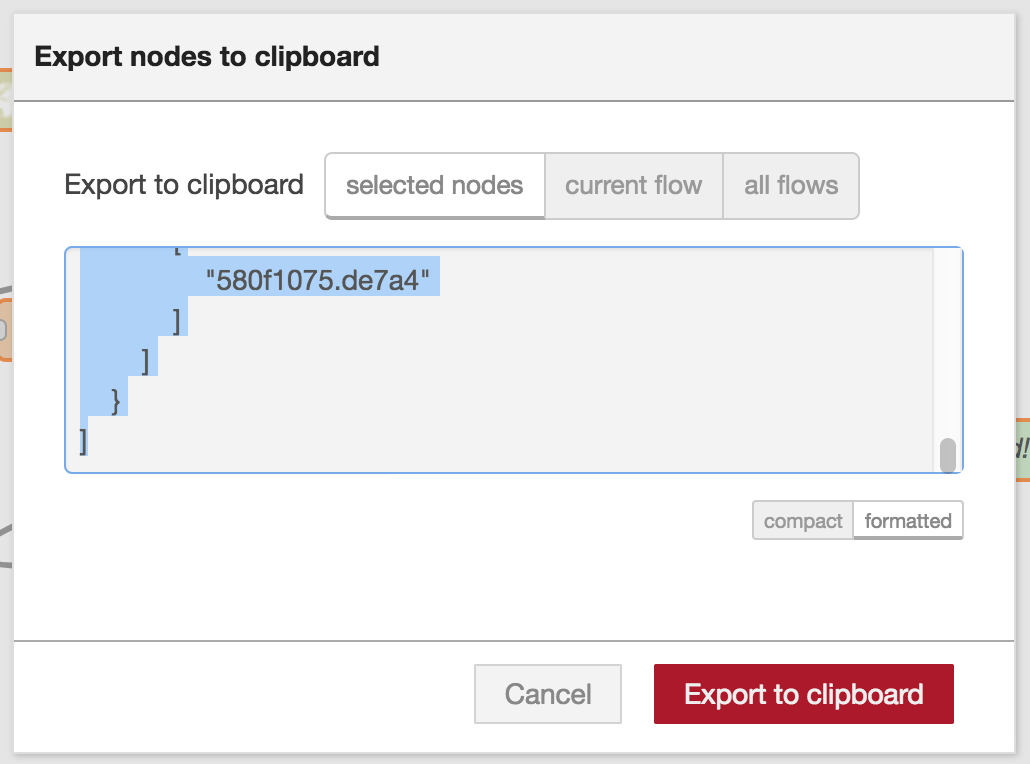
Node-RED stores flows as JSON objects, like the above source code shows. These are saved whenever we quit the Node-RED service, but it is better to store our flows externally. To export a flow, select all the nodes and wires in the tab (draw a rectangle around them), click the menu button, then choose Export | Clipboard. You can also choose "select flow" in the dialog that appears. Then choose "formatted", and press the "Export to clipboard" button. This JSON can then be saved in a file, uploaded to Git, discussed in message boards, etc.


Importing Flows
So how do we get flow JSON into the Node-RED IDE? To import a flow, click the menu button, then choose Import | Clipboard. You can then paste flow JSON in the dialog that opens.